2022. 8. 31. 14:49ㆍ공부/HTML/CSS
부모 요소 하위의 자식들을 가로 혹은 세로로 정렬해준다.
float와 inline-block 대용으로 사용할 수 있다.
단, IE에서는 사용 안 되는 속성도 있다.
자세한 지원사항은 https://caniuse.com/?search=flex 에서 확인 가능하다.
HTML 구조
<div class="container">
    <div class="item">
        item01
        <ul>
           <li>01</li>
           <li>02</li>
        </ul>
    </div>
    <div class="item">item02</div>
    <div class="item">item03</div>
</div>
flex container 속성
display
.container{display: flex;}기본적으로 부모 요소에 flex 선언이 되어있어야 한다. 선언을 하면 자식들이 inline 되었음을 확인할 수 있다.
height 값은 컨테이너의 높이만큼 늘어난다. 이것이 float와의 차이점이다.

단, 직계 자손에게만 적용된다.
하위 요소도 또한 옆으로 정렬하고 싶다면 ul에 display:flex;를 선언해줘야 한다.
.container{display: flex;}
.container .item ul{display: flex;}
flex 요소 중, display: inline-flex;는 container 사이즈가 item 영역에 맞게 조절된다.
display: inline 요소를 생각하면 된다.

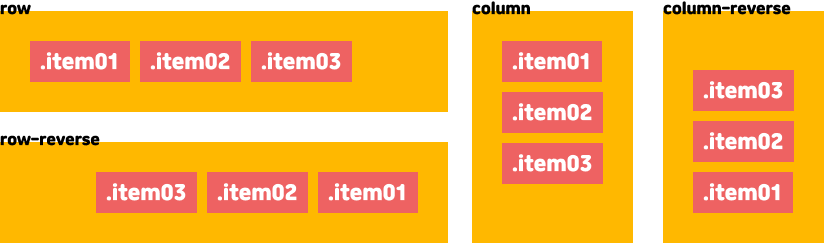
flex-direction - 방향 요소
.container{
    /*기본값*/
    flex-direction: row;

    /*아이템들이 가로(행) 역순으로 배치*/
    flex-direction: column;

    /*아이템들이 세로(열) 방향으로 배치*/
    flex-direction: row-reverse;

    /*아이템들이 역순으로 세로(열) 배치*/
    flex-direction: column-reverse;
 }
flex-wrap - 줄 넘김 요소
.container{
    /*기본값*/
    flex-wrap: nowrap;

    /*줄 넘김*/
    flex-wrap: wrap;

    /*줄 넘김 - 아래에서 위쪽으로*/
    flex-wrap: wrap-reverse;
}
flex-flow - 방향 + 줄 넘김 요소
.container{
    /*방향은 가로, 줄바꿈*/
    flex-flow: row wrap;
}
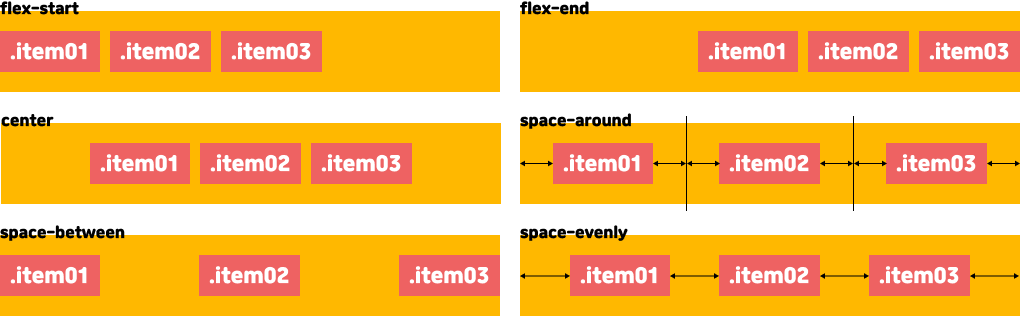
justify-content - 수평 정렬
.container{
    /*기본값 - 가로는 왼쪽 세로는 위*/
    justify-content: flex-start;

    /*끝 - 가로는 오른쪽 세로는 아래*/
    justify-content: flex-end;

    /*가운데*/
    justify-content: center;

    /*아이템들 사이 균일한 간격 - 맨 끝은 여백이 없다*/
    justify-content: space-between;

    /*아이템 둘레 균일한 간격*/
    justify-content: space-around;

    /*아이템과 양끝에 균일한 간격 - IE에서는 사용 불가*/
    justify-content: space-evenly;
}
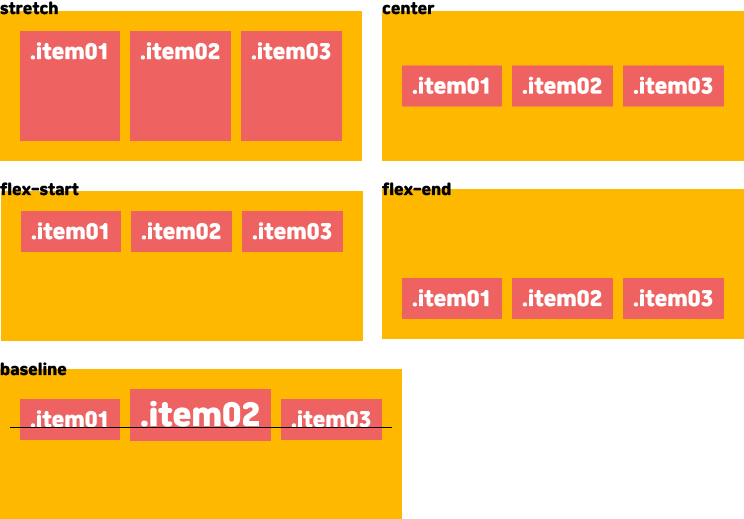
align-items - 수직정렬
.container{
    /*기본값 - 수직방향으로 늘어남*/
    align-items: stretch;

    /*가운데*/
    align-items: center;

    /*시작점 - 가로는 위, 세로 일때는 왼쪽*/
    align-items: flex-start;

    /*끝점 - 가로는 아래, 세로는 오른쪽*/
    align-items: flex-end;

    /*폰트 baseline 기준*/
    align-items: baseline;
}
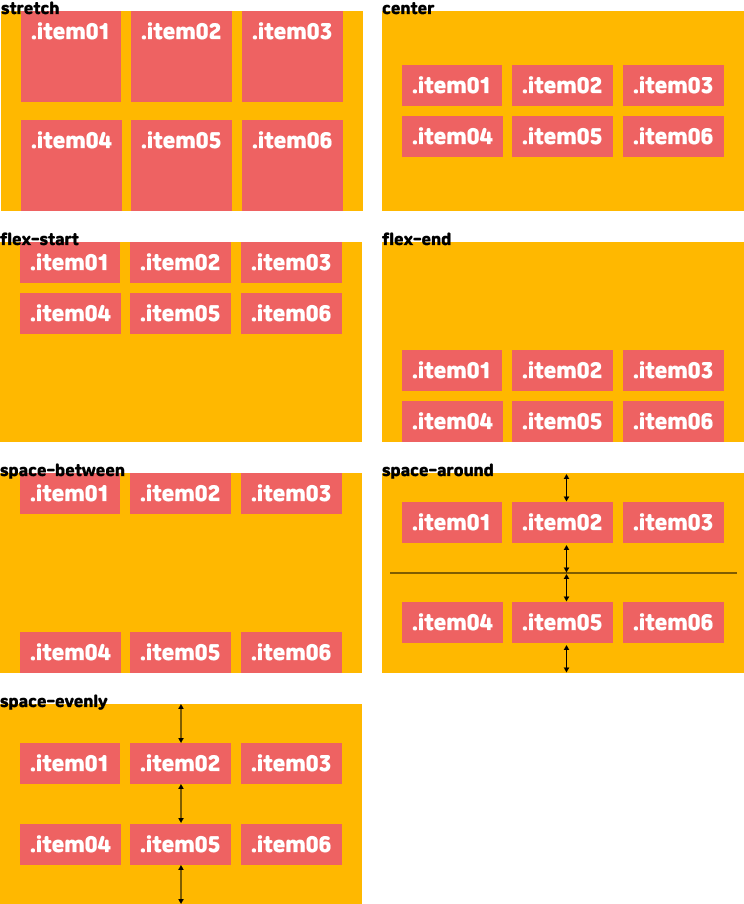
align-content - 행 정렬
flex-wrap을 사용하여 다음 줄로 넘김 이 발생했을 시의 행 사이의 간격. justify-content와 정렬 방식은 동일하다.
.container{
    /*기본값 - 수직방향으로 늘어남 */
    align-content: stretch;

    /*가운데*/
    align-content: center;

    /*시작 - 가로는 위 세로는 왼쪽*/
    align-content: flex-start;

    /*끝 - 가로는 아래 세로는 오른쪽*/
    align-content: flex-end;

    /*아이템들 사이 균일한 간격 - 맨 끝은 여백이 없다*/
    align-content: space-between;

    /*아이템 둘레 균일한 간격*/
    align-content: space-around;

    /*아이템과 양끝에 균일한 간격 - IE에서는 사용 불가*/
    align-content: space-evenly;
}
자주 사용하는 요소로 justify-content: center; align-item: center;을 사용하면 이미지를 가운데에 정렬 가능하다.
FLEX를 사용하지 않으면 {position:absolute; left:50%; top:50%; transform:translate(-50%, -50%);} 로도 가능
브라우저 개발 툴(devTool)에서 flex 요소를 확인하면 좀 더 직관적으로 확인이 가능하다.

place-content - 수직+수평 그룹 정렬
IE에서는 사용할 수 없다.
align-content와 justify-content를 같이 쓰는 축약어다. align - justify 순으로 쓰고 하나만 쓰면 두 속성 공통이다.
.container {
    place-content: center stretch;

    /*
    	place-content: center;
    	stretch
    	center
    	start
    	end
    	space-between
    	space-around
    	space-evenly
    */
}
gap - 간격
IE에서는 사용할 수 없다.
item 사이의 여백을 지정할 수 있다. 요소들 사이에만 적용되기 때문에 margin을 적용하는 것과는 다르다. 상단에서 지금까지 보아온 이미지들이 전부 item에 gap이 적용돼있는 모습이다.
.container{gap:10px;}

/*상하 10px, 좌우 50px 따로 적용*/
.container{gap:10px 50px;}
See the Pen FLEX CONTAINER by bo-ra-na (@bo-ra-na) on CodePen.
flex item 속성
flex-basis - 넓이
item의 기본 너비 설정. basis 설정 시 shrink 속성이 자동으로 적용된다. 가로(row) 일 때는 넓이, 세로(column) 일 때는 높이
.item{
    /*기본값*/
    flex-basis:auto;

    /*width 지정*/
    flex-basis:0;
    flex-basis:50%;
    flex-basis:150px;
    flex-basis:10em;
}
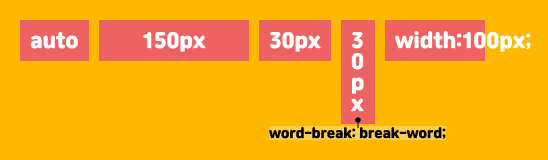
basis 값은 width, height 값 대신 들어간다고 보면 된다. auto는 width값을 사용한다.
basis 값보다 현재 넓이가 더 넓은 경우 작동하지 않지만, word-wrap: break-word;로 단어를 다음 줄로 넘어가게 적용시키면 basis 값만큼 width값이 적용된다. basis와 다르게 width로 적용 시 영역이 늘어나지 않고 텍스트가 밖으로 빠져나가게 된다.
flex-grow - 비율 증가
container에 여백이 남아있을 때 쓰는 속성이다. flex-basis가 설정되어 있다면 basis로 지정된 값을 제외한 여백 부분이다.
flex-grow에 설정된 비율만큼 분배된다. 브라우저를 가로방향으로 늘리거나 줄이게 되면 grow에 설정된 비율만큼 증감하게 된다.
기본값인 0으로 설정하게 되면 브라우저가 늘어나도 움직이지 않는다.
.item{
    /*기본값*/
    flex-gorw:0;

    /*브라우저에 맞게 늘릴 때*/
    flex-grow:1;
}

/*브라우저에 맞게 비율로 늘릴때*/
.item:nth-child(1){ flex-grow:1;}
.item:nth-child(2){ flex-grow:2;}
.item:nth-child(3){ flex-grow:1;}
.item:nth-child(4){ flex-grow:4;}
flex-shrink - 비율 감소
flex-shrink는 flex-grow와 반대로 감소 값을 결정한다. flex-basis나 width 설정되어 있다면 basis, width보다 작아질 수 있는지를 정한다.
기본값인 1을 설정하게 되면 basis, width 값보다 작아질 수 있다.
.item{
    /*기본값*/
    flex-shrink:1;

    /*고정 폭*/
    flex-shrink:0;
}
0으로 설정하게 되면 basis보다 작아지지 않아 고정폭으로 설정 가능하다.

flex - grow, shrink, basis 축약
.item{
    /*flex-grow: 1; flex-shrink: 1; flex-basis: 0;*/
    flex: 1;

    /*flex-grow:1; flex-shrink: 1; flex-basis: auto;*/
    flex: 1 1 auto;
}
basis를 생략해서 넣으면 basis 값은 0이 된다.
.item:nth-child(1){flex:1 1 0;}
.item:nth-child(2){flex:2 1 0;}
.item:nth-child(3){flex:1 1 0;}
.item:nth-child(3){flex:4 1 0;}
basis를 0으로 할 경우 콘텐츠의 영향을 받지 않고, 영역 자체를 1:2:1:4의 비율로 설정할 수 있다.
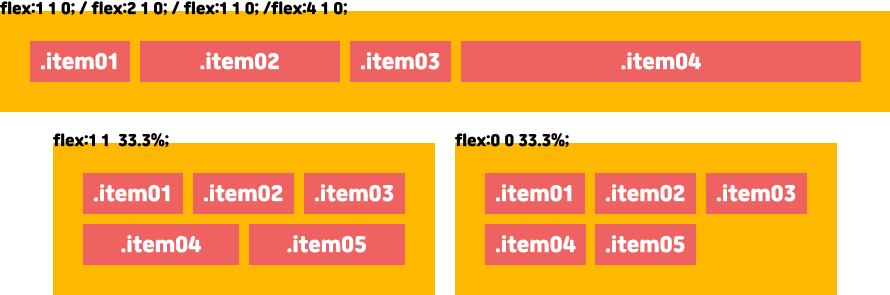
단, 상단 이미지처럼 gap이나 margin이 적용되어있을 경우 basis 값에서 -를 해줘야 영역이 3등분 된다.
align-self - 수직 정렬
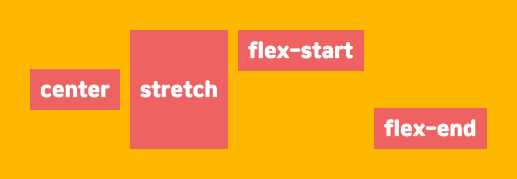
container가 아닌 item에 적용하는 CSS다. align-items이 전체 아이템의 수직 정렬이라면, align-self는 가각 해당 item의 수직 정렬이다. align-self는 부모 요소의 align-items보다 우선권이 있다.
.item{
    /*기본값 - align-items 상속*/
    align-self: auto;

    /* 가운데 */
    align-self: center;

    /* 늘어남 */
    align-self: stretch;

    /*시작점 - 가로는 위, 세로 일때는 왼쪽*/
    align-self: flex-start;

    /*끝점 - 가로는 아래, 세로는 오른쪽*/
    align-self: flex-end;
}
order - 배치 순서
item들의 시각적 순서이다. 물리적인 위치 값은 변경되지 않는다. 즉, 스크린리더에서는 효과가 없음.
-값도 가능하다.
.item:nth-child(1){order: 2}
.item:nth-child(2){order: 1;}
.item:nth-child(3){order: 4;}
.item:nth-child(4){order: 3;}
See the Pen FLEX ITEM by bo-ra-na (@bo-ra-na) on CodePen.
'공부 > HTML/CSS' 카테고리의 다른 글
| :root 변수 (0) | 2022.09.27 |
|---|---|
| CSS로 폰트 테두리, 그라데이션, 그라데이션 테두리 (0) | 2022.09.27 |
| CSS 카운터 함수로 목차 순번 만들기 (0) | 2022.09.13 |
| GRID란? (1) | 2022.09.08 |
| CSS로 넓이 조정 (0) | 2022.08.30 |